
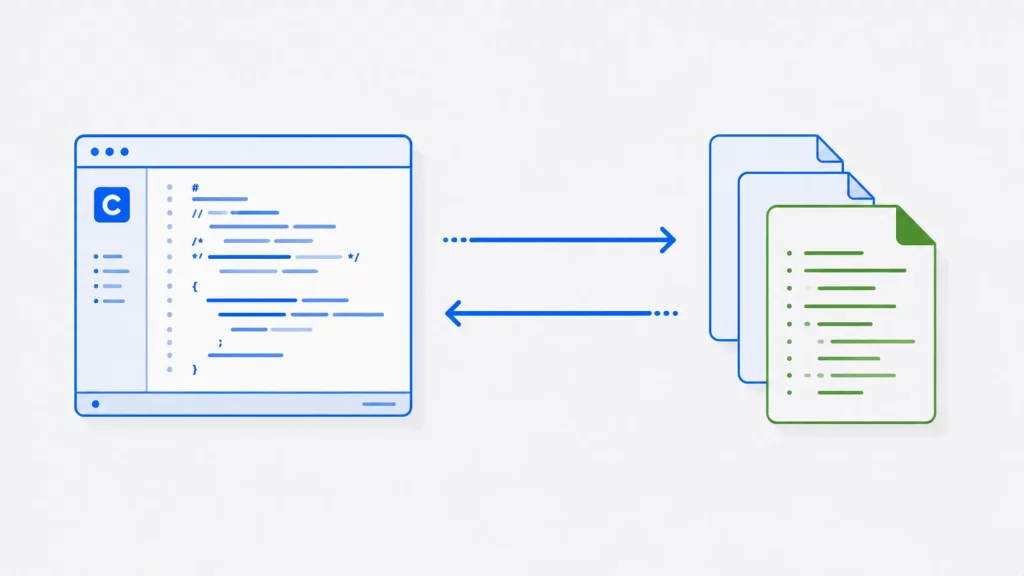
File handling lets your C programs store data permanently — writing it to disk so it survives after the program ends, and reading it back later. It’s one of the most important skills in C, used for everything from saving configuration and logs to processing large data files.
This guide covers file handling in C from the ground up: what files are, every core function you’ll use (fopen, fclose, fread, fwrite, fprintf, fscanf, fseek, and more), all the file modes, practical examples for text and binary files, proper error handling, the common mistakes beginners make, and how C file handling compares to C++.
If you’re writing C++ rather than C, the idiomatic route is stream classes instead of FILE* — our companion guide to file handling in C++ covers ifstream, ofstream, open modes, and the modern std::filesystem library.
All code examples in this guide compile cleanly under the C11 standard (GCC, -Wall -Wextra) and were tested to produce the output shown.
What Is File Handling in C?
A file is a named collection of data stored on a disk or other storage device. Where a normal variable lives in memory and disappears when your program ends, a file persists — which is exactly why file handling matters: it’s how a program keeps data between runs.
In C, files are accessed through a file pointer, a variable of type FILE * declared in the standard header <stdio.h>. The FILE structure holds everything the system needs to track the file: its current position, its mode, and buffering information. You rarely touch its internals directly — you pass the pointer to functions like fread and fwrite, and they do the work.
The typical workflow is always the same three steps: open the file (get a FILE *), read or write data through that pointer, then close the file to flush any buffered data and release resources.
Text Files vs Binary Files
C handles two kinds of files, and knowing the difference matters because it changes how you open and process them.
A text file stores human-readable characters — letters, digits, punctuation, each represented by a numeric ASCII code — that you can open in any text editor. Source code, CSV files, and configuration files are all text files.
A binary file stores raw bytes exactly as they exist in memory, with no character encoding or line-ending translation. Images, audio, compiled programs, and serialized data structures are binary files. They’re not human-readable in a text editor, but they’re compact and preserve exact data — a double written to a binary file reads back as the identical value, with no formatting loss.
The practical rule: use text mode for anything a human should be able to read, and binary mode when you’re storing raw data structures or non-text data.
C File Handling Functions (Quick Reference)
These are the standard-library functions you’ll use for file handling, all declared in <stdio.h>.
| Function | Purpose |
|---|---|
fopen() | Open a file and return a FILE * |
fclose() | Close a file and flush buffers |
fgetc() | Read a single character |
fputc() | Write a single character |
fgets() | Read a line (or up to n characters) |
fputs() | Write a string |
fprintf() | Write formatted text |
fscanf() | Read formatted text |
fread() | Read a block of binary data |
fwrite() | Write a block of binary data |
fseek() | Move the file position indicator |
ftell() | Get the current file position |
rewind() | Reset the position to the start of the file |
feof() | Check whether end-of-file was reached |
perror() | Print a human-readable error message |
remove() | Delete a file |
rename() | Rename a file |
File Modes in C (Quick Reference)
The second argument to fopen() is the mode, which controls what you can do with the file and what happens to existing data. Add b to any mode for binary access (for example "rb" or "wb").
| Mode | Meaning | If file exists | If file doesn’t exist |
|---|---|---|---|
"r" | Read | Opens it | Fails (returns NULL) |
"w" | Write | Erases contents | Creates it |
"a" | Append | Writes at the end | Creates it |
"r+" | Read and write | Opens it, keeps contents | Fails |
"w+" | Read and write | Erases contents | Creates it |
"a+" | Read and append | Keeps contents, writes at end | Creates it |
"rb", "wb", "ab" | Binary versions | Same as above | Same as above |
The most important thing to remember: "w" and "w+" destroy any existing data in the file the moment you open it. If you want to add to a file without wiping it, use "a" (append), not "w".
Opening and Closing a File
Every file operation starts with fopen() and should end with fclose(). The signature of fopen() is:
FILE *fopen(const char *filename, const char *mode);It returns a FILE * on success, or NULL if the file couldn’t be opened — which is why you must always check the return value before using it (more on this in the error-handling section). fclose() flushes any buffered data to disk and frees the resources:
int fclose(FILE *stream);Always close every file you open. Forgetting to close a file can mean data you “wrote” never actually reaches the disk, because it’s still sitting in a buffer.
Writing to a Text File
Here’s a complete program that creates a file and writes a line of text to it. Note the NULL check immediately after fopen() — this pattern should be in every file program you write.
#include <stdio.h>

int main(void)
{
    FILE *fp = fopen("example.txt", "w");
    if (fp == NULL) {
        perror("Error opening file");
        return 1;
    }

    fprintf(fp, "Hello, file handling in C!\n");

    fclose(fp);
    return 0;
}
Opening with "w" creates example.txt (or erases it if it already exists), fprintf() writes the formatted text, and fclose() saves and closes it. After running this, example.txt contains the line Hello, file handling in C!.
Reading a Text File
There are two common ways to read a text file: character by character, or line by line.
Character by character with fgetc(), looping until it returns EOF:
#include <stdio.h>

int main(void)
{
    FILE *fp = fopen("example.txt", "r");
    if (fp == NULL) {
        perror("Error opening file");
        return 1;
    }

    int c;   // must be int, not char, to detect EOF correctly
    while ((c = fgetc(fp)) != EOF) {
        putchar(c);
    }

    fclose(fp);
    return 0;
}
Line by line with fgets(), which is usually more practical for text files:
#include <stdio.h>

int main(void)
{
    FILE *fp = fopen("example.txt", "r");
    if (fp == NULL) {
        perror("Error opening file");
        return 1;
    }

    char line[256];
    while (fgets(line, sizeof line, fp) != NULL) {
        printf("%s", line);
    }

    fclose(fp);
    return 0;
}
fgets() reads up to one line (or sizeof line - 1 characters) at a time and stops at a newline or end of file. It’s safer than older approaches because you tell it the buffer size, so it can’t overflow.
Output (both programs print) (assuming example.txt contains the line written earlier):
Hello, file handling in C!Appending to a File
To add data to the end of a file without erasing what’s already there, open it in append mode ("a"):
#include <stdio.h>

int main(void)
{
    FILE *fp = fopen("example.txt", "a");
    if (fp == NULL) {
        perror("Error opening file");
        return 1;
    }

    fprintf(fp, "This line was appended.\n");

    fclose(fp);
    return 0;
}
Every time you run this, a new line is added to the end of example.txt, leaving the existing content intact. This is the correct mode for things like log files.
Reading and Writing Structured Data (fprintf / fscanf)
fprintf() and fscanf() are functions that work just like printf() and scanf(), except they operate on a file. They’re ideal for writing and reading structured records in text form:
#include <stdio.h>

int main(void)
{
    // Write a record
    FILE *fp = fopen("data.txt", "w");
    if (fp == NULL) { perror("open"); return 1; }
    fprintf(fp, "%s %d %.2f\n", "Alice", 30, 5000.50);
    fclose(fp);

    // Read it back
    fp = fopen("data.txt", "r");
    if (fp == NULL) { perror("open"); return 1; }

    char name[50];
    int age;
    double salary;
    fscanf(fp, "%49s %d %lf", name, &age, &salary);
    printf("%s is %d and earns %.2f\n", name, age, salary);

    fclose(fp);
    return 0;
}
Output:
Alice is 30 and earns 5000.50Note the %49s in fscanf — bounding the string width to one less than the buffer size prevents a buffer overflow. Unbounded %s in fscanf is a classic security bug.
Working with Binary Files (fread / fwrite)
For non-text data — or to store entire structures exactly as they sit in memory — use binary mode with fwrite() and fread():
size_t fwrite(const void *ptr, size_t size, size_t count, FILE *stream);
size_t fread(void *ptr, size_t size, size_t count, FILE *stream);
This example writes a struct to a binary file and reads it straight back:
#include <stdio.h>

struct Person {
    char name[50];
    int age;
};

int main(void)
{
    struct Person p1 = {"Bob", 42};

    // Write the struct in binary
    FILE *fp = fopen("people.dat", "wb");
    if (fp == NULL) { perror("open"); return 1; }
    fwrite(&p1, sizeof(struct Person), 1, fp);
    fclose(fp);

    // Read it back
    struct Person p2;
    fp = fopen("people.dat", "rb");
    if (fp == NULL) { perror("open"); return 1; }
    fread(&p2, sizeof(struct Person), 1, fp);
    fclose(fp);

    printf("Read from binary: %s, %d\n", p2.name, p2.age);
    return 0;
}
Output:
Read from binary: Bob, 42fwrite copies the raw bytes of the struct straight to disk, and fread copies them straight back into another struct — no formatting or parsing needed. This is fast and exact, but the resulting file isn’t human-readable and isn’t portable across systems with different architectures (a caveat worth knowing for real projects).
Random Access: fseek, ftell and rewind
By default you read a file from start to finish, but you can jump to any position. fseek() moves the position indicator, ftell() reports where you currently are, and rewind() jumps back to the beginning. A common use is finding a file’s size:
#include <stdio.h>

int main(void)
{
    FILE *fp = fopen("example.txt", "r");
    if (fp == NULL) { perror("open"); return 1; }

    fseek(fp, 0, SEEK_END);   // jump to the end
    long size = ftell(fp);    // position == size in bytes
    printf("File size: %ld bytes\n", size);

    rewind(fp);               // back to the start to read
    fclose(fp);
    return 0;
}fseek()‘s third argument is the reference point: SEEK_SET (start), SEEK_CUR (current position), or SEEK_END (end). Random access is essential for working with large files where reading everything sequentially would be wasteful.
Error Handling in C File Operations
File operations fail for all sorts of reasons — the file doesn’t exist, you don’t have permission, the disk is full. Robust C code checks for these rather than assuming success.
The first line of defense is always checking fopen()‘s return value. When it returns NULL, the global variable errno is set, and perror() prints a readable message explaining what went wrong:
#include <stdio.h>

int main(void)
{
    FILE *fp = fopen("nonexistent.txt", "r");
    if (fp == NULL) {
        perror("Could not open file");   // e.g. "Could not open file: No such file or directory"
        return 1;
    }

    // ... work with the file ...

    fclose(fp);
    return 0;
}
A few habits make file code reliable: always check fopen() before using the pointer; check the return values of fread/fwrite when the exact count matters; and use perror() (or strerror(errno)) so failures produce a useful message rather than a silent crash.
Common Mistakes in C File Handling
These are the errors that trip up almost every beginner:
- Not checking whether
fopen()returnedNULL. Using aNULLfile pointer crashes the program. Always check first. - Using
charinstead ofintforfgetc().EOFis anintvalue that acharmay not be able to represent, sowhile ((c = fgetc(fp)) != EOF)can loop forever or stop early ifcis achar. Useint. - Opening with
"w"when you meant"a"."w"silently erases the file. If you wanted to add to it, that’s data loss. - Forgetting to call
fclose(). Buffered data may never reach the disk, so the file ends up empty or incomplete. - Unbounded
%sinfscanf(). Always specify a width like%49sto prevent buffer overflows. - Assuming a relative path.
fopen("data.txt", ...)looks in the program’s current working directory, which may not be where you think. Use a full path if in doubt.
File Handling in C vs C++
C++ builds on C’s approach but adds a cleaner, object-oriented interface through the <fstream> library. Both ultimately do the same job.
| Aspect | C | C++ |
|---|---|---|
| Interface | Functions (fopen, fread, …) | Stream classes (ifstream, ofstream, fstream) |
| File handle | FILE * pointer | Stream object |
| Opening | fopen() with mode string | Constructor or .open() |
| Reading/writing | fprintf, fscanf, fread, fwrite | << and >> operators, .read(), .write() |
| Closing | fclose() (manual) | Automatic when the object goes out of scope (RAII) |
| Error handling | Check return values / errno | Stream state flags and exceptions |
The biggest practical difference is that C++ streams close themselves automatically when they go out of scope, whereas in C you must remember to call fclose(). If you’re learning both languages, see our dedicated guide to file handling in C++ for the full stream-based approach.
Frequently Asked Questions
Conclusion
File handling is what turns a C program from something that forgets everything when it closes into something that can store, retrieve, and process real data. The workflow is always the same — open a file with fopen(), read or write through the file pointer, and close it with fclose() — and the details come down to choosing the right mode and the right functions for text or binary data.
The habits that separate reliable file code from fragile code are simple: always check whether fopen() succeeded, always close what you open, use int for fgetc(), and never use "w" when you meant "a". Master those, and you have the foundation for everything from configuration files and logs to full data-processing applications. To keep building your C skills, explore our complete C programming tutorials.