


A game, an installer or a tool such as Photoshop refuses to start with a message like this:
The code execution cannot proceed because VCRUNTIME140_1.dll was not found.
Reinstalling the program may fix this problem.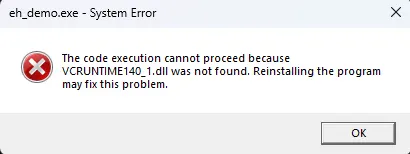
The fix takes about two minutes: install (or repair) the 64-bit Microsoft Visual C++ Redistributable from Microsoft. This guide gives the exact steps, explains why the error happens, covers the cases where the first fix is not enough and, for developers, shows which programs need this DLL and how to ship them so their users never see the error. The developer section’s claims were tested with MSVC on Windows 11, using dumpbin to check which DLLs each build imports.
The Quick Fix
- Download the x64 Visual C++ Redistributable from Microsoft’s permanent link: aka.ms/vc14/vc_redist.x64.exe.
- Run
vc_redist.x64.exe, accept the license and click Install. If it says the product is already installed, click Repair instead. - Restart Windows if the installer asks you to.
- Start the program again.
Use the x64 package even on an ARM64 PC: Microsoft’s x64 package contains both the ARM64 and the x64 runtime files. And do not download vcruntime140_1.dll on its own from a “DLL download” website; the section below explains why.
What Is VCRUNTIME140_1.dll?
VCRUNTIME140_1.dll is part of the Microsoft Visual C++ runtime, the library that programs written in C++ with Microsoft’s compiler use at run time. It contains the exception-handling code that 64-bit programs built with Visual Studio 2019 or later call when an error is raised and caught. Windows does not ship it; the Visual C++ Redistributable installs it.
The name breaks down like this:
- VCRUNTIME is the core Visual C++ runtime library.
- 140 is the runtime’s version family, v14, shared by everything from Visual Studio 2015 to Visual Studio 2026.
- _1 marks an addition to
VCRUNTIME140.dll. Microsoft added it in Visual Studio 2019 for a more compact exception-handling scheme on x64, named FH4 after the__CxxFrameHandler4function the DLL provides. Microsoft’s C++ team described the change in Making C++ Exception Handling Smaller on x64.
That last point explains most of the confusion around this error. A computer can have the 2015 Visual C++ runtime installed, VCRUNTIME140.dll present and working, and still be missing VCRUNTIME140_1.dll, because the 2015 package predates it. Only a newer v14 Redistributable installs it.
Why the Error Appears
The program was built with Visual Studio 2019 or later as a 64-bit application, and Windows cannot find a usable copy of VCRUNTIME140_1.dll when it starts the program. The usual reasons, from most to least common:
- The Redistributable was never installed. The program’s installer was supposed to install it and did not, or the program was copied from another PC.
- Only an old runtime is installed, such as the 2015 package, which has no
VCRUNTIME140_1.dll. - Only the 32-bit (x86) Redistributable is installed. 32-bit programs never use
VCRUNTIME140_1.dll, so the x86 package does not install it. On the Windows 11 test PC, with both the x64 and the x86 v14 packages installed,vcruntime140_1.dllwas inSystem32but not inSysWOW64, the folder for 32-bit runtime files. - The runtime files are damaged, or security software quarantined one of them.
- The program brought its own, older copy of the runtime DLLs in its folder, and Windows loads that copy first.
On a PC with no v14 runtime at all, you may see this error more than once. When the test program from this article was started on a clean copy of Windows (Windows Sandbox, build 26100), Windows showed three dialogs in a row, one for each missing file: VCRUNTIME140.dll, MSVCP140.dll and VCRUNTIME140_1.dll. One install of the x64 Redistributable provides all three, and afterwards the same program ran normally.
On Windows 11 the dialog is titled “program.exe – System Error” and reads exactly as quoted at the top of this page. The text varies with the program and the Windows version: “VCRUNTIME140_1.dll was not found”, “is missing from your computer”, “The program can’t start because VCRUNTIME140_1.dll is missing” or a “procedure entry point … could not be located” message naming one of the runtime DLLs. All of them have the same fix.
Step-by-Step: Install or Repair the Visual C++ Redistributable
1. Check whether Windows is 64-bit. Open Settings > System > About and look at System type. Almost every Windows 10 and 11 PC is “64-bit operating system, x64-based processor”; some laptops say “ARM-based processor”. Either way, the package to install is x64.
2. Download the package from Microsoft. Microsoft keeps permanent links that always point to the latest supported version, listed on its latest supported Visual C++ Redistributable downloads page:
| Package | Permanent link | Install it when |
|---|---|---|
| x64 | https://aka.ms/vc14/vc_redist.x64.exe | Always, on any 64-bit Windows, including ARM64 PCs. This is the one that installs VCRUNTIME140_1.dll |
| x86 | https://aka.ms/vc14/vc_redist.x86.exe | Also, if a 32-bit program reports a missing VCRUNTIME140.dll or MSVCP140.dll |
| ARM64 | https://aka.ms/vc14/vc_redist.arm64.exe | Only for native ARM64 programs; the x64 package already contains the ARM64 files |
3. Run the installer. Double-click vc_redist.x64.exe, tick the license box and click Install. If Windows asks for permission, click Yes. If the installer shows Repair and Uninstall buttons, a version is already installed: click Repair, which restores any damaged or missing files.
4. Restart if asked, then start the program again.
5. If it still fails, repair from Settings. Open Settings > Apps > Installed apps, search for Visual C++, find Microsoft Visual C++ v14 Redistributable (x64) (followed by its version number, for example 14.50.35719), open its menu, choose Modify and then Repair.
Check Which Version Is Installed
Two PowerShell commands show whether the 64-bit runtime is installed and which version it is. Open PowerShell (no administrator rights needed) and run:
# The version of the DLL Windows will load for 64-bit programs
(Get-Item "$env:windir\System32\vcruntime140_1.dll").VersionInfo.FileVersion

# Every Visual C++ Redistributable in the Apps list, with its version
Get-ItemProperty "HKLM:\SOFTWARE\Microsoft\Windows\CurrentVersion\Uninstall\*", "HKLM:\SOFTWARE\WOW6432Node\Microsoft\Windows\CurrentVersion\Uninstall\*" |
    Where-Object DisplayName -like "Microsoft Visual C++*Redistributable*" |
    Select-Object DisplayName, DisplayVersion
On the Windows 11 test PC, the first command returned 14.50.35719.0, and the second listed “Microsoft Visual C++ v14 Redistributable (x64) – 14.50.35719” and the matching x86 package, next to older 2010 and 2013 runtimes that are separate products. If the first command reports that the file does not exist, the x64 package is not installed.
Trust the file version over the registry. The Redistributable also writes its version under HKLM\SOFTWARE\Microsoft\VisualStudio\14.0\VC\Runtimes\x64, but on the test PC the two registry views disagreed: the 32-bit view (WOW6432Node), the one Microsoft’s documentation describes, said v14.44.35211.00, while the 64-bit view and the installed files said 14.50.35719. Scripts that compare versions should read the file.
When Installing the Redistributable Does Not Fix It
The program ships its own old copy. Windows looks for DLLs in the program’s own folder before the system folder. If a program puts an old vcruntime140.dll there but no vcruntime140_1.dll, or an old copy of both, it can fail even though the correct files are installed. Look in the program’s installation folder for vcruntime140*.dll. Reinstalling the program, or updating it, usually replaces them; as a test, renaming the program’s own copies (for example to vcruntime140_1.dll.old) makes Windows use the installed ones.
The installer fails. Microsoft’s troubleshooting guide for the Visual C++ Redistributable lists the common error codes:
| Code | Meaning | What to try |
|---|---|---|
| 1603 | Generic installation failure | Install pending Windows updates, restart, run the installer again; check the log in %TEMP% (dd_vcredist_*.log) |
| 5 | Access denied | Right-click the installer and choose Run as administrator; pause security software during the install |
| 32 | A file is in use | Close running programs, or restart and install first thing |
| 1620 | The installer package could not be opened | Download the installer again |
| 1714 | An older version cannot be removed | A damaged Windows Installer cache; follow the log to the failing package |
Windows 7, 8 or 8.1. The latest Redistributable supports only Windows 10 and 11 (and Windows Server 2016 and later). On older Windows, use the runtime installer the program’s vendor provides, or an older Redistributable from Microsoft’s Visual Studio Dev Essentials downloads.
Why Not Download the DLL by Itself?
Searching for the error leads to sites that offer vcruntime140_1.dll as a single download to copy into System32. That fixes the error sometimes and causes new problems often:
- You cannot verify the file. A DLL from an unknown site runs with the same rights as the program that loads it, and copying it into
System32makes every program load it. The only trustworthy source is Microsoft’s own installer. - One file is rarely enough.
VCRUNTIME140_1.dllworks together withVCRUNTIME140.dll,MSVCP140.dlland other runtime files of the same version. A single newer or older file can trade the “not found” error for an “entry point not found” error. - Nothing updates it. The Redistributable is serviced by Microsoft Update; a hand-copied file never is.
The Redistributable is a free download from Microsoft. Installing it is both the safe and the complete fix.
For Developers: Which Programs Need VCRUNTIME140_1.dll?
If you build C++ programs with Visual Studio, your users will see this error unless your installer handles the runtime. The repository for this article builds the same small program in several ways and uses dumpbin /dependents to check which runtime DLLs each build imports:
// eh_demo.cpp - a program that throws and catches a C++ exception.
// Built for x64 with Visual Studio 2019 or later, it imports
// __CxxFrameHandler4 from VCRUNTIME140_1.dll.
#include <cstdio>
#include <stdexcept>
#include <string>

static int parse_port(const std::string& text)
{
    const int port = std::stoi(text);       // throws std::invalid_argument for "abc"
    if (port < 1 || port > 65535)
        throw std::out_of_range("port must be 1-65535");
    return port;
}

int main()
{
    for (const char* input : {"8080", "abc", "70000"}) {
        try {
            std::printf("%s -> port %d\n", input, parse_port(input));
        } catch (const std::invalid_argument&) {
            std::printf("%s -> not a number\n", input);
        } catch (const std::out_of_range& e) {
            std::printf("%s -> %s\n", input, e.what());
        }
    }
}
Built with MSVC 14.44 (Visual Studio 2022) on Windows 11, dumpbin /dependents reported these Visual C++ runtime imports (the Universal CRT api-ms-win-crt-* imports, which are part of Windows 10 and 11, are left out):
| Build | x64 | x86 | ARM64 |
|---|---|---|---|
eh_demo, default settings (/MD) | MSVCP140.dll, VCRUNTIME140.dll, VCRUNTIME140_1.dll | MSVCP140.dll, VCRUNTIME140.dll | MSVCP140.dll, VCRUNTIME140.dll |
eh_demo with /d2FH4- | MSVCP140.dll, VCRUNTIME140.dll | Same as default | Not applicable (x64 option) |
eh_demo with the static runtime (/MT) | None (only KERNEL32.dll) | None (only KERNEL32.dll) | None (only KERNEL32.dll) |
hello: no exceptions, only std::puts | VCRUNTIME140.dll | VCRUNTIME140.dll | VCRUNTIME140.dll |
The tests assert every x64 and x86 cell of this table, and three deliberate mistakes (leaving FH4 on, linking the DLL runtime instead of the static one, building eh_demo from hello.cpp) each made a test fail. The ARM64 column comes from a build with Visual Studio 2026 (MSVC 14.52) on GitHub’s Windows runner: even with the newest compiler, an ARM64 program does not import VCRUNTIME140_1.dll. Only x64 programs do.
So VCRUNTIME140_1.dll is a 64-bit dependency that appears as soon as a program uses C++ exceptions with Visual Studio 2019 or later; the x86 builds never import it. The standard library itself throws (std::stoi above), so almost every real C++ program qualifies.
Your options for shipping:
- Install the Redistributable with your program (recommended). Run
vc_redist.x64.exe /install /quiet /norestartfrom your installer, or/passiveto show progress. Microsoft recommends this central deployment because Windows Update can then service the runtime. Check the registry value described above first if you want to skip the install when a newer version is present. - Link the runtime statically with
/MT(CMake:MSVC_RUNTIME_LIBRARY "MultiThreaded"). The program then needs no runtime DLLs at all, at the cost of a larger executable and no runtime security updates through Windows Update. - Deploy the DLLs next to your executable (“app-local”). It works, but you become responsible for updating them, and Microsoft does not recommend it.
- Turn FH4 off with the compiler option
/d2FH4-(and/d2:-FH4-for the linker). The x64 build then uses the older exception tables fromVCRUNTIME140.dllonly. The option is undocumented, and the larger tables are the price; treat it as a stopgap for a fleet of machines that cannot be updated, not as a fix.
Check the Runtime from C++
An installer or launcher can check for the runtime itself before starting the main program. runtime_check.cpp reads the registry values the Redistributable writes and reports which copy of each runtime DLL Windows would load. It is linked with the static runtime, so it runs even on a machine where the runtime is missing:
// runtime_check.cpp - reports which Visual C++ v14 runtimes are installed,
// the way an installer would check before deciding to run vc_redist.
//   1. The registry values the Redistributable writes (Installed, Version),
//      in both registry views.
//   2. Whether this process can load vcruntime140.dll, vcruntime140_1.dll and
//      msvcp140.dll, which copy Windows picks and its file version.
#ifndef WIN32_LEAN_AND_MEAN
#define WIN32_LEAN_AND_MEAN
#endif
#include <windows.h>

#include <cstdio>
#include <string>
#include <vector>

// Reads HKLM\SOFTWARE\Microsoft\VisualStudio\14.0\VC\Runtimes\<arch> in one
// registry view. Microsoft documents the 32-bit view (WOW6432Node on 64-bit
// Windows), but the two views can disagree, so the program reports both and
// the file version below is what to trust.
static void report_registry(const wchar_t* arch, REGSAM view, const char* view_name)
{
    const std::wstring path = std::wstring(L"SOFTWARE\\Microsoft\\VisualStudio\\14.0\\VC\\Runtimes\\") + arch;
    HKEY key = nullptr;
    if (RegOpenKeyExW(HKEY_LOCAL_MACHINE, path.c_str(), 0, KEY_READ | view, &key) != ERROR_SUCCESS) {
        std::printf("registry %-6ls %-12s not installed\n", arch, view_name);
        return;
    }
    DWORD installed = 0, size = sizeof installed;
    RegQueryValueExW(key, L"Installed", nullptr, nullptr, reinterpret_cast<BYTE*>(&installed), &size);
    wchar_t version[64] = L"";
    size = sizeof version;
    RegQueryValueExW(key, L"Version", nullptr, nullptr, reinterpret_cast<BYTE*>(version), &size);
    RegCloseKey(key);
    std::printf("registry %-6ls %-12s Installed=%lu Version=%ls\n", arch, view_name, installed, version);
}

// Loads a DLL by name with the normal search order, then prints the path of
// the copy Windows chose and its file version. (This program is linked with
// the static runtime, so it runs even when no runtime DLL is installed.)
static void report_dll(const wchar_t* name)
{
    HMODULE dll = LoadLibraryW(name);
    if (dll == nullptr) {
        std::printf("%-20ls not found (error %lu)\n", name, GetLastError());
        return;
    }
    wchar_t path[MAX_PATH] = L"";
    GetModuleFileNameW(dll, path, MAX_PATH);
    FreeLibrary(dll);

    DWORD ignored = 0;
    const DWORD size = GetFileVersionInfoSizeW(path, &ignored);
    std::vector<unsigned char> info(size);
    VS_FIXEDFILEINFO* fixed = nullptr;
    UINT length = 0;
    if (size == 0 || !GetFileVersionInfoW(path, 0, size, info.data())
        || !VerQueryValueW(info.data(), L"\\", reinterpret_cast<void**>(&fixed), &length)) {
        std::printf("%-20ls %ls (no version information)\n", name, path);
        return;
    }
    std::printf("%-20ls %ls version %u.%u.%u.%u\n", name, path,
                static_cast<unsigned>(HIWORD(fixed->dwFileVersionMS)),
                static_cast<unsigned>(LOWORD(fixed->dwFileVersionMS)),
                static_cast<unsigned>(HIWORD(fixed->dwFileVersionLS)),
                static_cast<unsigned>(LOWORD(fixed->dwFileVersionLS)));
}

int main()
{
#if defined(_M_ARM64)
    std::puts("this process: ARM64");
#elif defined(_M_X64)
    std::puts("this process: x64");
#else
    std::puts("this process: x86");
#endif
    for (const wchar_t* arch : {L"x64", L"x86", L"arm64"}) {
        report_registry(arch, KEY_WOW64_32KEY, "32-bit view");
        report_registry(arch, KEY_WOW64_64KEY, "64-bit view");
    }
    for (const wchar_t* dll : {L"vcruntime140.dll", L"vcruntime140_1.dll", L"msvcp140.dll"})
        report_dll(dll);
}
On the Windows 11 test PC, the 64-bit build printed:
this process: x64
registry x64    32-bit view  Installed=1 Version=v14.44.35211.00
registry x64    64-bit view  Installed=1 Version=v14.50.35719.00
registry x86    32-bit view  Installed=1 Version=v14.44.35211.00
registry x86    64-bit view  not installed
registry arm64  32-bit view  not installed
registry arm64  64-bit view  not installed
vcruntime140.dll     C:\WINDOWS\SYSTEM32\vcruntime140.dll version 14.50.35719.0
vcruntime140_1.dll   C:\WINDOWS\SYSTEM32\vcruntime140_1.dll version 14.50.35719.0
msvcp140.dll         C:\WINDOWS\SYSTEM32\msvcp140.dll version 14.50.35719.0
Three things in this output are worth knowing before you rely on a check like this:
- The two registry views disagree. The key Microsoft documents (the 32-bit view, under
WOW6432Node) still says 14.44, while the 64-bit view and the files themselves say 14.50. A check that reads only the documented key would report an older runtime than the one installed, so compare file versions when it matters. - The 32-bit build gives the same registry answers but cannot load
vcruntime140_1.dllat all: it printednot found (error 193). Error 193 means “not a valid Win32 application”. There is no 32-bit copy, because the x86 package does not include the DLL, so the search reached a 64-bit copy elsewhere on the search path, which a 32-bit process cannot load. That is expected and harmless: 32-bit programs never import this DLL. - The 32-bit build reports
C:\WINDOWS\SYSTEM32paths for the other two DLLs. Windows redirects that folder toSysWOW64for 32-bit programs, so those are the 32-bit copies, at the same version 14.50.35719.0.
Frequently Asked Questions
Can I download vcruntime140_1.dll by itself?
You can find it on DLL download sites, but you should not use them. Install Microsoft’s x64 Visual C++ Redistributable instead: it installs a verified copy of vcruntime140_1.dll together with the files it depends on, and Windows Update keeps it current.
Which Visual C++ Redistributable do I need for VCRUNTIME140_1.dll?
The latest Microsoft Visual C++ v14 Redistributable for x64, from https://aka.ms/vc14/vc_redist.x64.exe. It covers programs built with Visual Studio 2015 through 2026. The Visual C++ 2015 package is too old: it does not contain vcruntime140_1.dll.
Where does vcruntime140_1.dll go?
The Redistributable installs it in C:\Windows\System32. You do not need to copy it anywhere. There is no 32-bit version: on a 64-bit PC with both packages installed, C:\Windows\SysWOW64 has vcruntime140.dll and msvcp140.dll but no vcruntime140_1.dll.
Do I need both the x86 and the x64 Redistributable?
For VCRUNTIME140_1.dll, only x64. Many PCs have both installed because some programs are 32-bit; those need the x86 package for VCRUNTIME140.dll and MSVCP140.dll. Installing both does no harm.
Is vcruntime140_1.dll a virus?
The genuine file is signed by Microsoft and lives in C:\Windows\System32. A copy elsewhere is usually part of a program’s own installation. If you are unsure about a copy, right-click it, open Properties > Digital Signatures and check that it is signed by Microsoft Corporation.
Key Takeaways
- The fix for “VCRUNTIME140_1.dll was not found” is the x64 Microsoft Visual C++ v14 Redistributable, from Microsoft’s own link.
- The 2015 Redistributable and the x86 Redistributable do not contain this DLL.
- Use Repair when the Redistributable is already installed.
- Do not download single DLLs from third-party sites.
- Developers: x64 programs built with Visual Studio 2019 or later that use exceptions import this DLL. Ship the Redistributable with your installer, or link the runtime statically.
Conclusion
“VCRUNTIME140_1.dll was not found” looks alarming, but it almost always means one thing: a 64-bit program built with a modern Visual Studio needs a newer Visual C++ runtime than the computer has. Installing or repairing the x64 Redistributable from Microsoft fixes it, and the remaining cases, an old copy in the program’s folder or an installer that fails, have specific checks of their own. For developers, the same error is a packaging problem with a well-understood set of answers.
For more on the C++ features behind this DLL, see exception handling in C++, and for the compilers that produce it, the best C++ compilers. More C++ topics are in the C++ section.
Source Code and Tests

All programs on this page are in the windows/vcruntime directory of the MYCPLUS C++ examples repository.
Build and test (Windows, Visual Studio 2019 or later):
cmake -S . -B build -A x64
cmake --build build --config Release
ctest --test-dir build -C Release --output-on-failure
What the build checks.
- Compiler: MSVC with
/W4 /WX /permissive-, for x64, x86 and ARM64; a MinGW-w64 cross-compile from Linux with warnings as errors. - Imports: for x64, x86 and ARM64,
dumpbin /dependentsmust list (or must not list)VCRUNTIME140_1.dllfor each build, as in the table above. - Output:
eh_demoprints exactly the expected results, where the build machine can run it.
What I Verified
The Windows column comes from run_all.ps1 in the repository, run on Windows 11 (build 26300, x64) with MSVC 14.44. The Linux column was run for this article on Ubuntu 24.04 (MinGW-w64 GCC 13).
| Check | Ubuntu 24.04 | Windows 11 |
|---|---|---|
| Build with warnings as errors | MinGW-w64 cross-compile, C++17 and C++20: passed | MSVC 14.44 /W4 /WX /permissive-, x64 and x86: passed; ARM64 on GitHub’s runner (MSVC 14.52): passed, and eh_demo imports no VCRUNTIME140_1.dll |
Imports checked with dumpbin, and eh_demo output | Not applicable | Every assertion passed, x64 and x86 |
| Deliberate mistakes that a test must catch | Not applicable | All 3 caught |
| Installed runtime: files, registry, Apps list | Not applicable | v14 x64 and x86 14.50.35719; vcruntime140_1.dll in System32 only |
| The fix on a clean PC (Windows Sandbox, build 26100) | Not applicable | eh_demo failed with three “was not found” dialogs (VCRUNTIME140.dll, MSVCP140.dll, VCRUNTIME140_1.dll); the static build ran; after installing vc_redist.x64.exe, eh_demo printed the expected output |
Not covered: the Repair path and the installer error codes, Windows 10 (the steps are the same), Windows 7 and 8.1, and runtimes older than v14.